Online Account Setup
To get started, go to spaceshopselfstorage.com/pay-online/#/login or visit spaceshopselfstorage.com and click Pay Online at the top of the page.
Choose your facility location: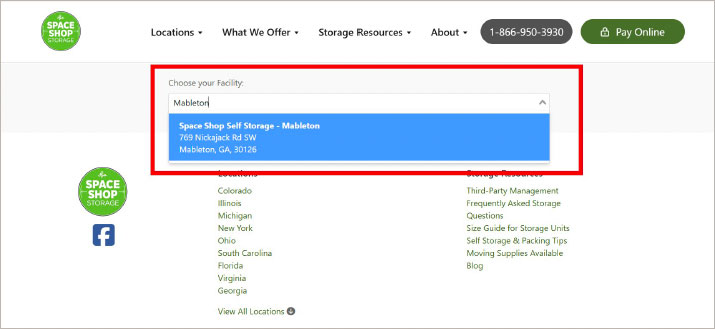
To log in – enter your email/username and password.
Forgot your password? Click Forgot your password and follow the reset steps below.
New to online access? Click Register an account: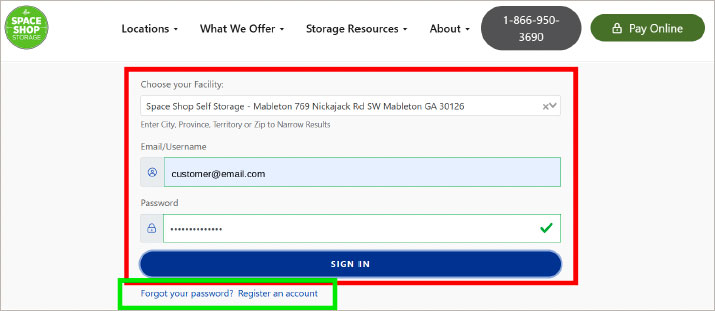
To register your account – select your facility, then enter your gate access code and the email address on file with us. Click Submit: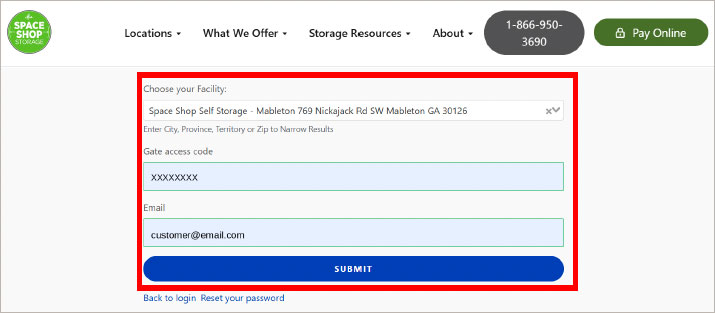
To reset your password – choose your facility, enter the email address associated with your account, and click Reset Password: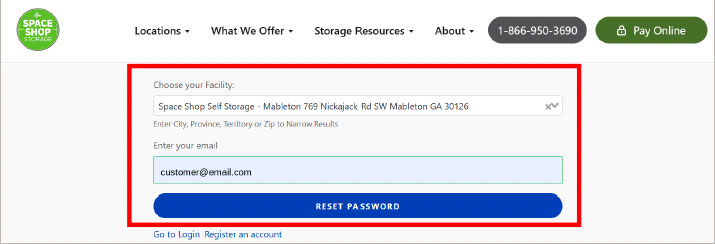
You’ll receive an email from Space Shop Self Storage – click the password reset link inside it: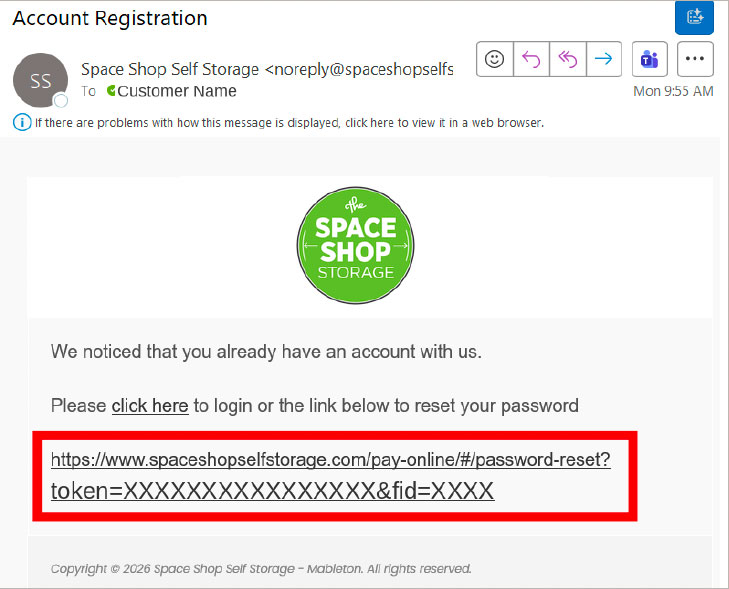
The link takes you to a page where you’ll enter your new password twice. Click Reset Password to finish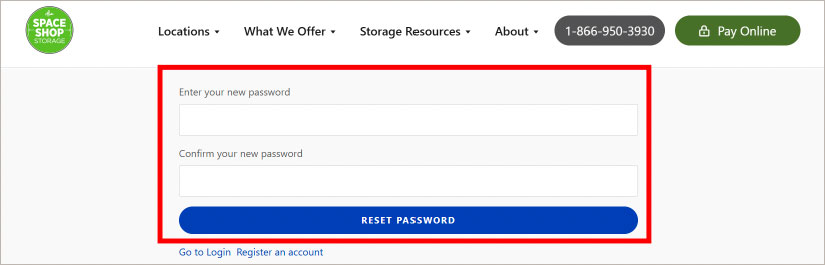
Once you’re logged in, you’ll see a menu with several options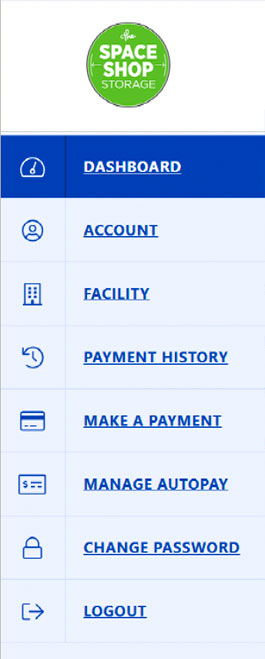
Dashboard: an overview of your account: your facility address, unit number, billing information, balance due, next payment date, and a link to enroll in Autopay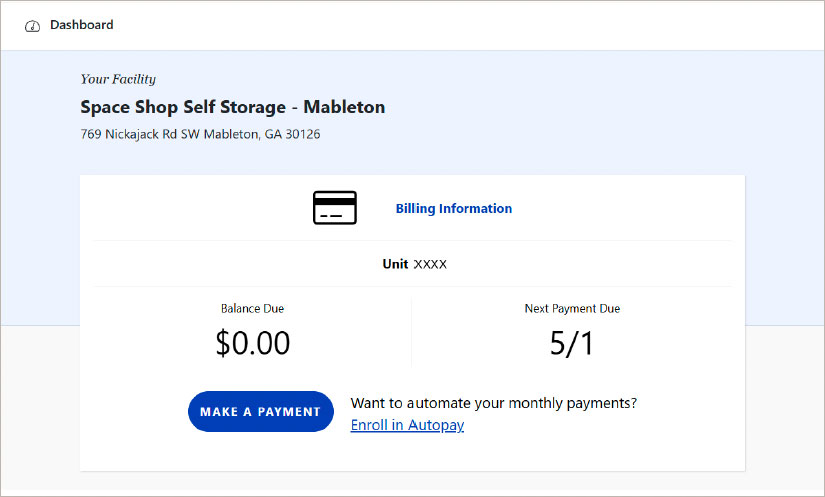
Account: Shows the contact and address information we have on file for you: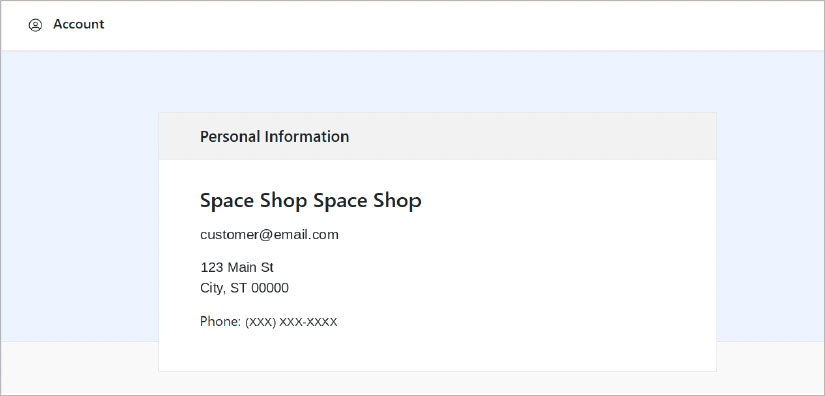
Facility: Shows your facility’s address, phone number, and email in case you need to reach us: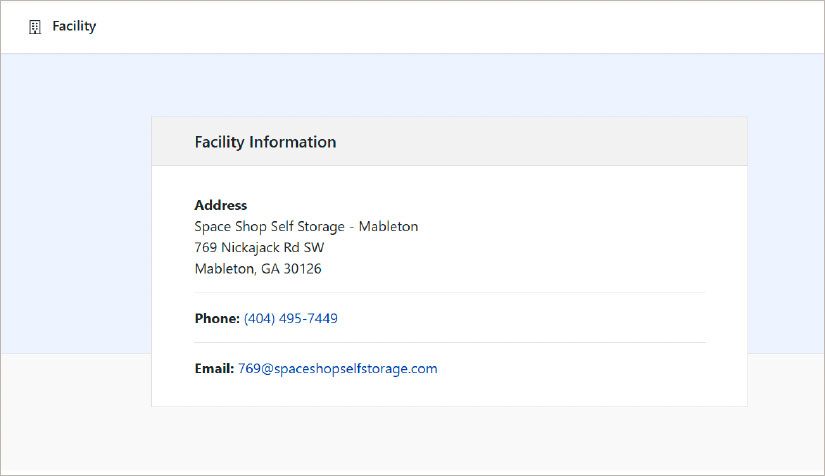
Payment History: Shows the payments you’ve made (payments only – it doesn’t break down individual charges and fees):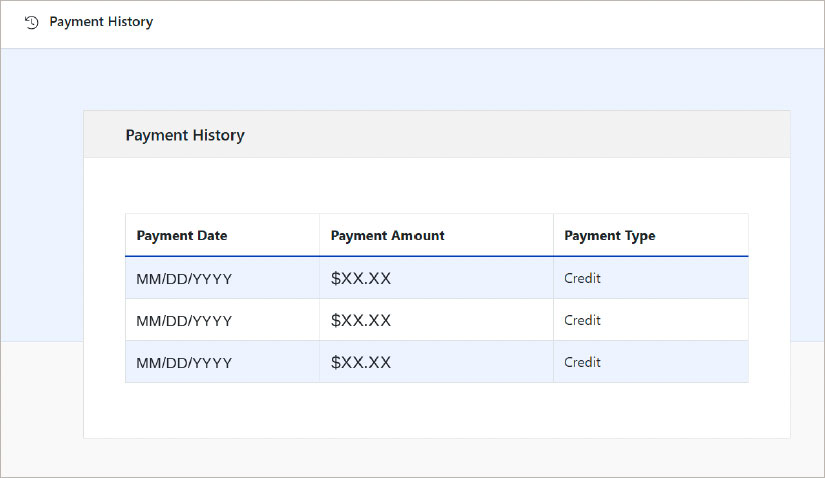
Make A Payment: Pay for a single month or prepay up to 12 months. You’ll enter your billing information (name and address) and credit card details, and you can choose to enroll in Autopay at the same time. Once you’ve reviewed your entries and selections, click Pay Now – the Payment Summary section shows the total you’ll be charged.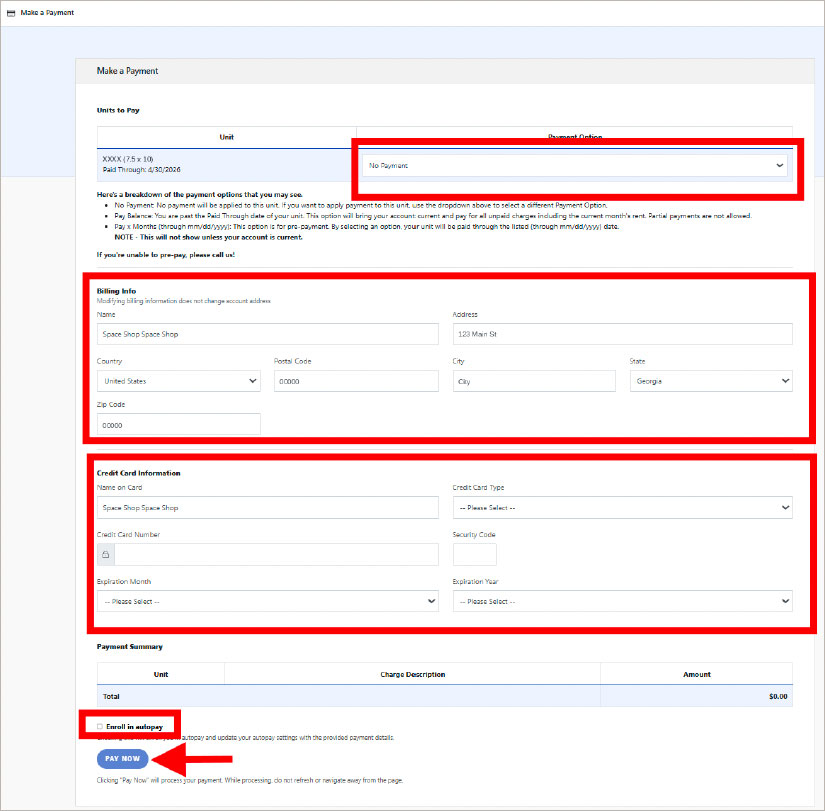
Manage Autopay: Enroll in Autopay or change your existing Autopay setup: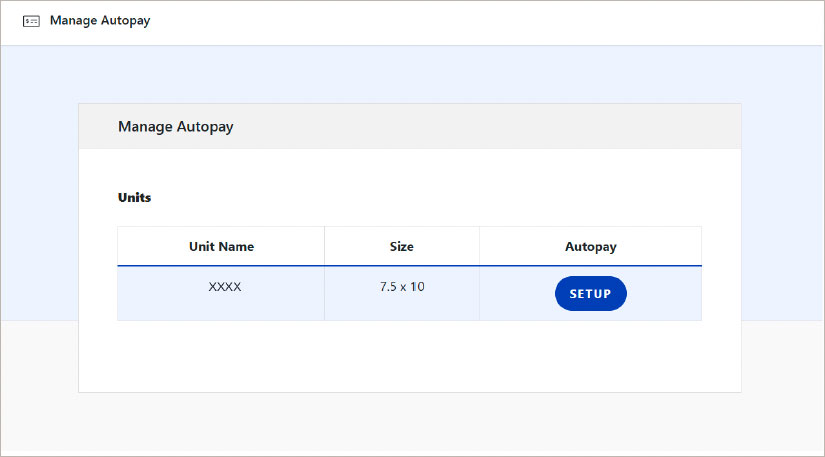
To set up Autopay – click the Setup button.
Enter the required billing and card details on the page and click Save: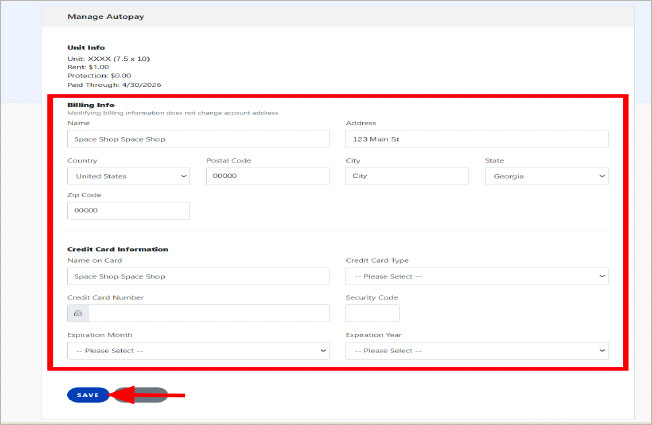
Once Autopay is set up, you can update or cancel it anytime from Manage Autopay:
Change Password: Enter your new password twice and click Update Password: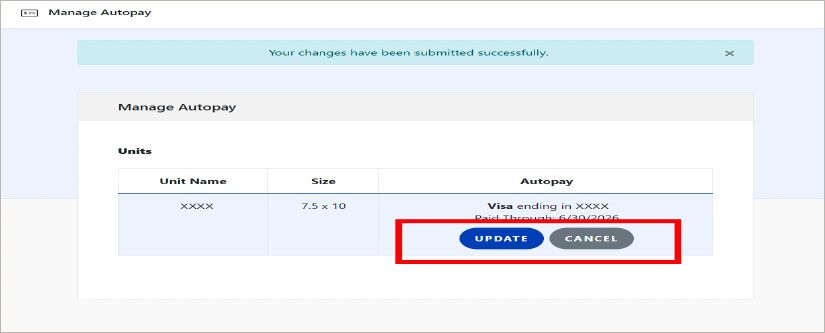
Logout: Click Logout to securely sign out of your account when you’re done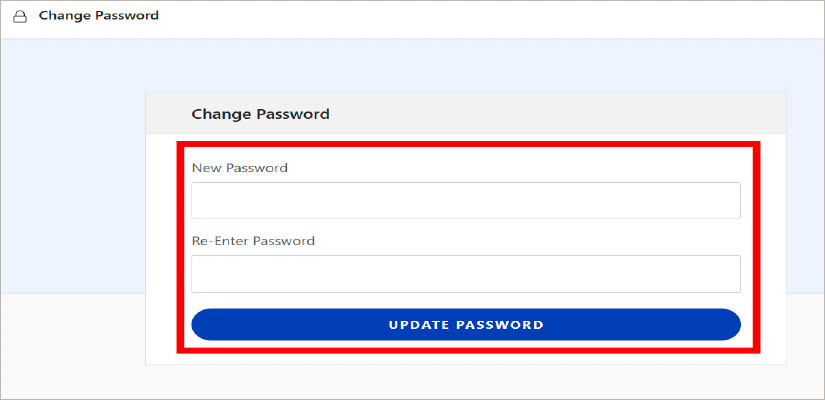
Questions About Your Account
Reach out to your facility using the contact information on the Facility page – we’re happy to help!